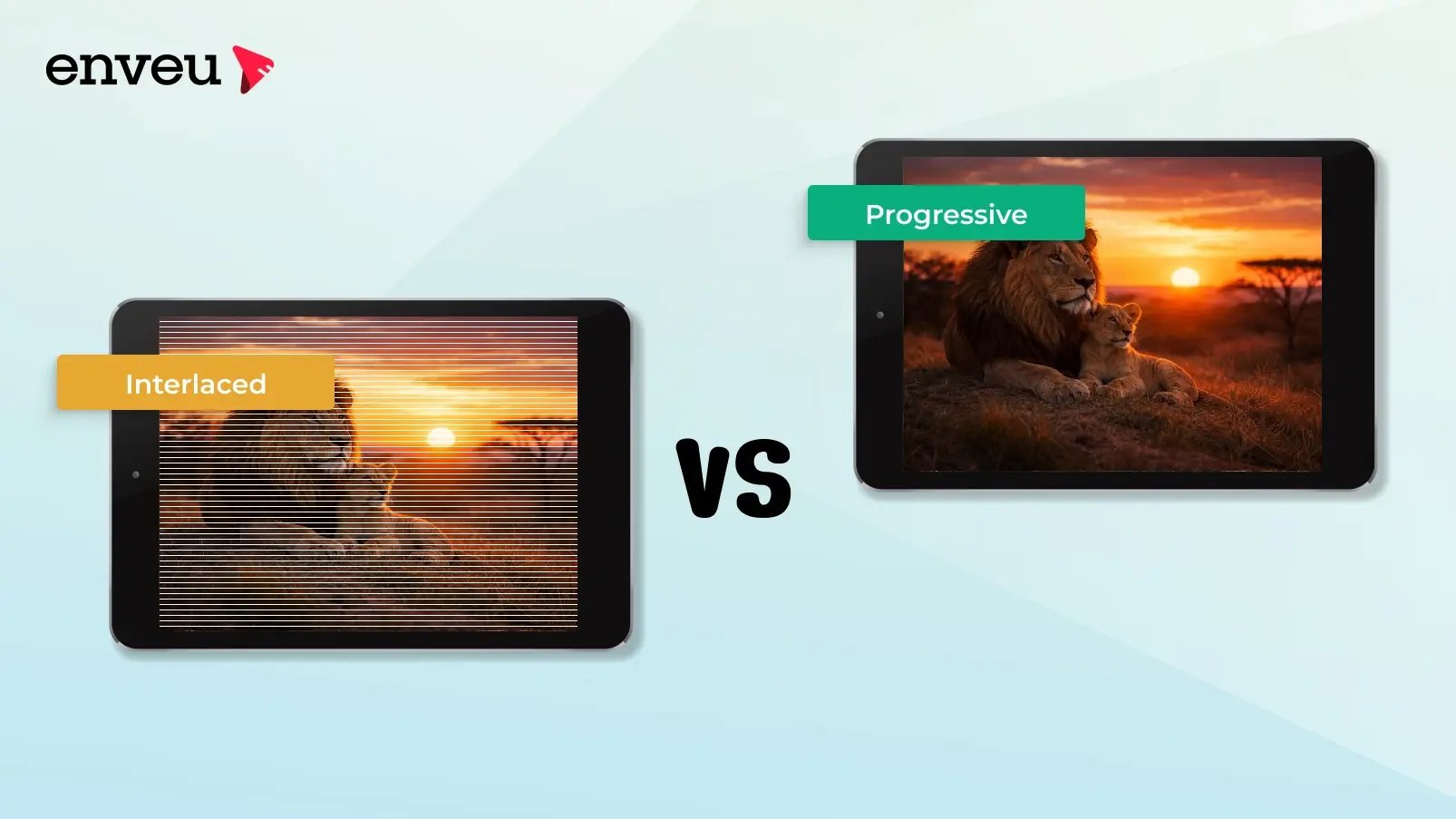
Progressive scan (the "p" in 1080p) draws every line of each frame in order, producing a smooth, clear image; interlaced scan (the "i" in 1080i) draws alternating lines in two passes, which saves bandwidth but can cause flicker and combing on fast motion. Progressive is the modern standard for streaming and digital displays; interlaced is a legacy broadcast technique. For streaming, progressive (1080p, 720p) is almost always the better choice.
Progressive vs interlaced at a glance
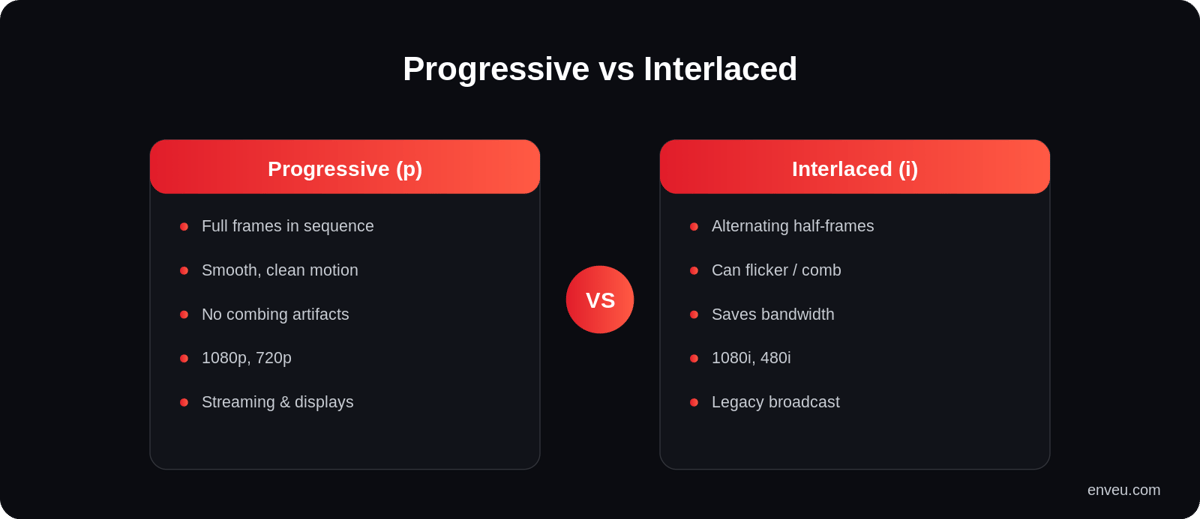
| Progressive (p) | Interlaced (i) | |
|---|---|---|
| How it draws | Every line, each frame, in sequence | Alternating lines in two fields |
| Motion | Smooth and clean | Can show flicker/combing |
| Bandwidth | Higher | Lower (a legacy saving) |
| Examples | 1080p, 720p | 1080i, 480i |
| Best for | Streaming, digital displays, gaming | Legacy broadcast |
What is progressive scan?
Progressive scan draws all the horizontal lines of a frame in a single, top-to-bottom pass, so each frame is complete before the next begins. That's what the "p" means in 1080p and 720p. Because every frame is whole, motion looks clean and there's no combing — which is why progressive is the standard for streaming, computer displays, gaming and every modern TV. It's sometimes described as "continuous scanning" because the image is drawn continuously line by line rather than split into halves.
What is interlaced scan?
Interlaced scan splits each frame into two "fields" — the odd-numbered lines, then the even-numbered lines — drawn in quick succession. That's the "i" in 1080i and 480i. It was invented to save bandwidth on older broadcast systems while keeping motion looking reasonable on CRT TVs: by sending half the lines at a time, a broadcaster could effectively double the perceived frame rate without doubling the data. The trade-off is visible artifacts — flicker and "combing" (jagged horizontal lines on moving edges) — especially on fast motion and modern flat-panel screens that have to reassemble the two fields.
Progressive vs interlaced: the real difference
The core difference is how each frame reaches the screen. Progressive sends a full frame every time; interlaced sends half a frame (a field) twice as often and lets the display stitch them together. On a still image the two look identical, but on motion they diverge: because interlaced fields are captured a fraction of a second apart, fast-moving objects don't line up between the odd and even lines, producing the comb-like tearing interlacing is known for. Progressive has no such split, so motion stays sharp. That's why anything built for clarity — streaming, gaming, digital signage — uses progressive, while interlacing survives mainly in legacy TV broadcast chains.
"Scan type: progressive or interlaced?" — which should you choose?
If you're setting up a camera, encoder or TV and it asks for a scan type of progressive or interlaced, choose progressive in almost every modern scenario. Displays today (LED/OLED TVs, monitors, phones) are natively progressive, and streaming protocols (HLS/DASH) are built around progressive frames — so progressive plays cleanly everywhere with no deinterlacing step. Pick interlaced only when you must match a legacy broadcast standard or feed equipment that specifically requires 1080i/576i. As a rule: capture, encode and stream in progressive unless a downstream system forces interlaced.
The "p" and "i" in 720p, 1080i and 1080p
The letter after a resolution is its scan type. 720p (1280×720) and 1080p (1920×1080) are progressive — full frames. 1080i is the same 1920×1080 pixel grid but interlaced — delivered as fields. 480i (old standard-definition TV) and 576i (PAL regions) are interlaced too. So "1080p vs 1080i" isn't about resolution — both are Full HD — it's purely about progressive vs interlaced delivery. For more on the numbers themselves, see our streaming resolutions guide and HD vs SD.
1080p vs 1080i: which is better?
For almost everything today, 1080p is better. Both are 1920×1080, but 1080p delivers full frames for cleaner motion, while 1080i can show interlacing artifacts. Because modern displays are progressive, they have to deinterlace 1080i before showing it — often losing a little quality and adding processing. There's a niche argument for 1080i on some legacy broadcast feeds (bandwidth), but for streaming, downloads and gaming, progressive wins on clarity every time. The practical takeaway: if a device or service offers you both, choose the 1080p (progressive) option unless something downstream specifically needs 1080i.
Why progressive scan became the standard
Interlacing made sense in the CRT era, when bandwidth and tube technology favoured drawing half-frames. But flat-panel displays are inherently progressive — every pixel is addressed directly — so they gain nothing from interlacing and actually have to undo it. As broadband, digital displays and internet streaming took over, progressive became the natural default: it matches how modern screens work, encodes cleanly for adaptive streaming, and avoids the artifacts interlacing introduces. Today, virtually all new content is produced, delivered and displayed progressively; interlacing lingers only in older broadcast infrastructure.
Where is interlaced scan still used?
Interlacing hasn't vanished — it persists in legacy broadcast television. Many over-the-air, cable and satellite channels still transmit 1080i because their infrastructure and standards were built around it, and 1080i fits comfortably in the bandwidth those systems allocate. You'll also see interlaced formats in older camcorders, archival footage and some live-TV production chains. But that's the tail end of a shrinking list: new cameras shoot progressive, streaming services deliver progressive, and displays are progressive. So while you'll still encounter interlaced content (mostly from broadcast), you rarely create it on purpose anymore.
Interlacing artifacts: combing and flicker
When interlaced video isn't handled well, two artifacts give it away. Combing is the horizontal, comb-like tearing you see on moving objects — it happens because the odd and even fields were captured at slightly different moments, so a fast-moving edge doesn't align between them. Interline flicker is a shimmer on thin horizontal lines and fine detail, since those details may appear in only one field. Both are most visible on large, modern progressive screens, which is exactly why interlaced content needs careful deinterlacing before it looks right today.
What is deinterlacing?
Deinterlacing is the process of converting interlaced video (fields) into progressive frames so it can play cleanly on modern displays and stream properly. It reconstructs full frames from the odd/even fields using techniques like blending, motion compensation or field doubling. Good deinterlacing is important because a modern TV or player must deinterlace 1080i before showing it — and poor deinterlacing is exactly where you see combing and softness. If your source footage is interlaced (from older cameras or broadcast gear), deinterlacing it before you encode gives viewers a far better result than leaving the player to do it on the fly.
Delivering clean progressive video for streaming
For streaming, the goal is always progressive: full frames, no combing, no per-device deinterlacing. If your source is interlaced, it should be deinterlaced and encoded as progressive before delivery. Enveu's Content Manager transcodes your content into progressive, adaptive-bitrate streams (HLS/DASH) up to 4K, so playback stays smooth across web, mobile and TV without the artifacts interlacing causes. It's part of Experience Cloud; see also the best bitrate for streaming.